Integration Checklist Overview
Before submitting your integration to Flex Pay QA for final review, work through the checklist below. A thorough self-check accelerates the onboarding process and gets Flex Pay live for your customers faster.
If you have questions or challenges, reach out to your Flex Pay Account Manager and/or Integration Lead.
Non-Payment Page
Verify that Pay Monthly messaging appears in all agreed placements.
- Have you placed
<up-from-pricing>components with correctprice-valuein every agreed location? - Does clicking/interacting with a pricing component open the information modal?
- Does pricing update correctly after each
window.Uplift.Payments.load(orderInfo)when the customer changes their selections? - Do non-qualifying orders hide the component when the amount is below the configured threshold?
- On CSS-heavy pages, does the Shadow DOM output render correctly without host-page style interference?
For example, when an itinerary exceeds $15,000 and the component is configured as total, no From Pricing should appear. If price-type is set to a non-total value, visibility follows the configured behavior rules.

📘 Check with your Account Manager for account-specific thresholds (minimum/maximum order values, booking windows, etc.).
Payment Page
Verify that the Pay Monthly Selector and iFrame appear in agreed locations per your business team's design.
- Have you implemented Pay Monthly selectors following the configuration guidelines?
- Is traveler/billing information sent correctly and pre-filled in the Flex Pay iFrame?
- If the payment page also displays
<up-from-pricing>components, are they synchronized withorderInfo.order_amount?
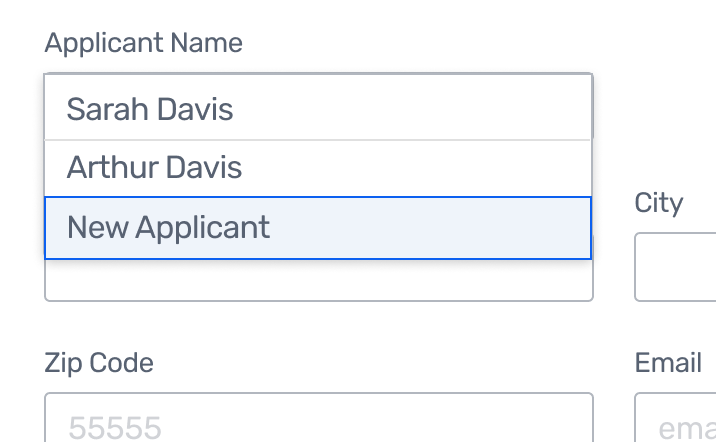
- Is customer information sent correctly to the iFrame (including traveler details for minors where applicable)?
- If add-ons or insurance are included, is the total reflected correctly in the loaded order?
Behavior for the Pay Monthly Option
- On selecting Pay Monthly, are credit card and billing fields hidden from the user?
- On selecting Pay Monthly, does the iFrame open and present the Flex Pay application?
- Is the Pay Monthly option shown with the correct pricing when the itinerary qualifies?
.png)
- Is the Pay Monthly option disabled and shown as "Unavailable" when the itinerary does not qualify?
.png)
Confirmation Page
- Is the Flex Pay virtual card number hidden from the user?
- Is the API confirmation call fired with the correct confirmation code?
- Is
window.Uplift.Payments.confirm(confirmationData)executed correctly?
⚠️ All prices must be expressed in cents (integer). Be careful with JavaScript floating-point arithmetic.
From Pricing Regression Checks
Run these additional checks if your integration uses <up-from-pricing> components:
- Multiple
<up-from-pricing>components on the same page all update from a singleload(orderInfo)call. - Tooltip and modal interactions work correctly after route transitions (SPA).
- No host-page CSS overrides break From Pricing rendering (Shadow DOM isolation).
- Dynamic price changes (e.g. adding insurance, changing room type) cause all visible components to re-render with updated offers.
- Components hide correctly when offers become unavailable after an order change.
- Components with
show-error="true"display the error state and tooltip when offers are unavailable.
QA Process
Now that the Flex Pay integration has been completed, the next step in the implementation process is the QA review phase conducted by the Flex Pay team.
-
To begin this process, the Flex Pay team will provide a Jira board containing eight pre-defined test scenarios that represent the most common issues identified during integrations.
-
For each scenario, please provide evidence confirming the scenario has been implemented correctly. Acceptable evidence includes screenshots or video recordings demonstrating the expected behavior.
-
After the initial eight scenarios have been validated, the Flex Pay team will do a comprehensive validation of the integration within a lower environment.
-
During this review, individual Jira tickets will be created for any issues or unexpected behavior identified. These findings may include items such as incorrect copy usage, invalid or missing data values, or other implementation discrepancies.