The Flex Pay ‘From Pricing’ Messaging App enables Flex Pay placements on your Product, Collection and Cart pages to help increase Flex Pay awareness throughout the entire purchase flow of your website. The Flex Pay ‘From Pricing’ consists of the following components:
‘from $X/mo’ placements
Info Icon
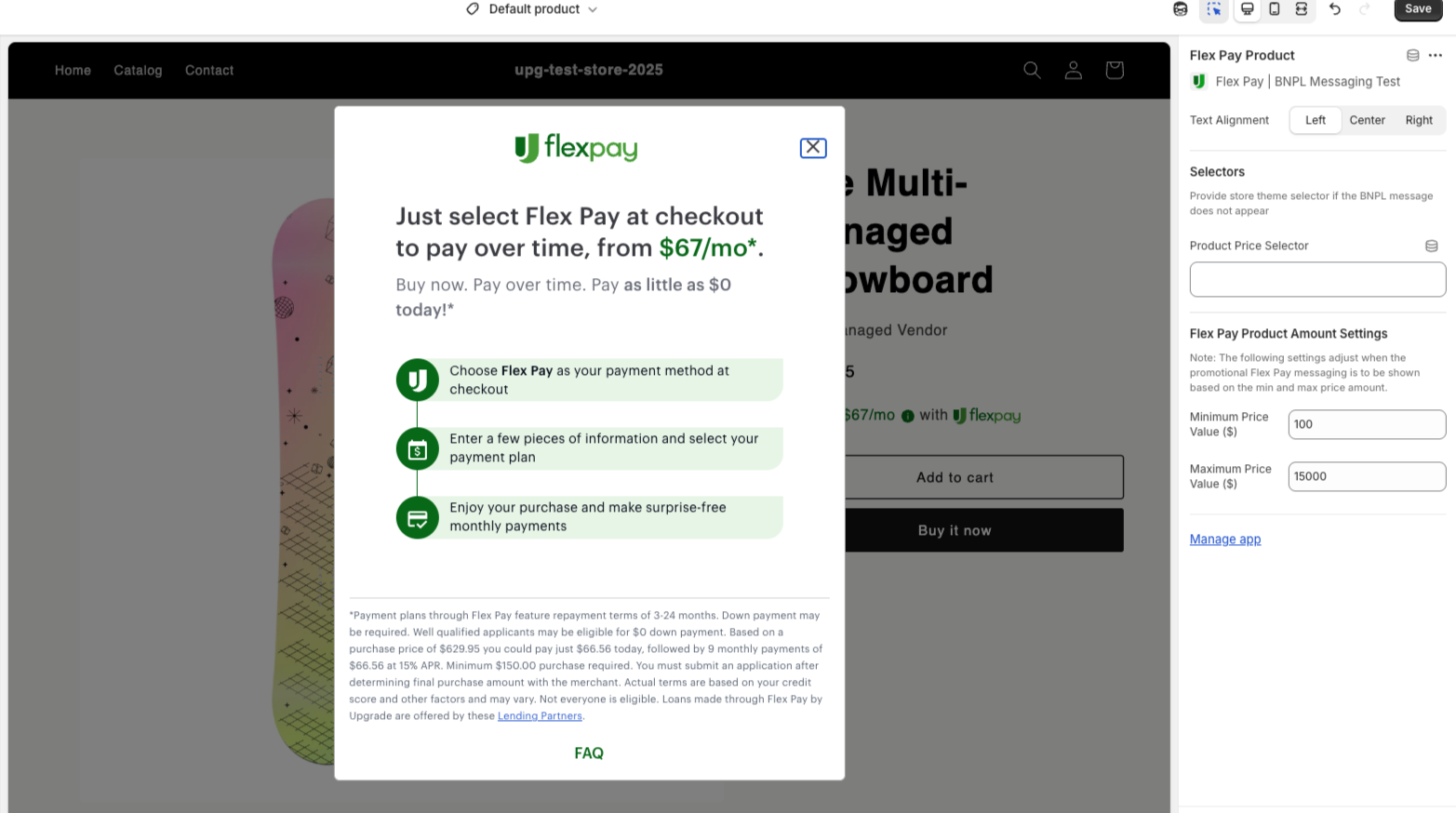
Flex Pay Infomodal
The Flex Pay 'From Pricing' Messaging App is configured in the ‘Theme Editor’ section of your Shopify Dashboard
WARNING: Before adding our Flex Pay | Pay Now, Pay Later Messaging app, you must first install our Flex Pay app to your Shopify Store
Installing on Product Pages
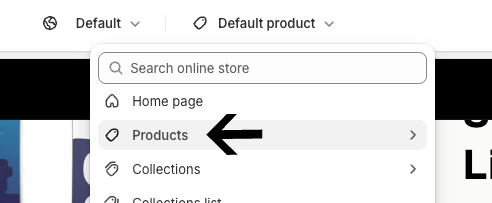
In your theme editor, navigate to the ‘Products’ page
After landing on your Product page, hover your mouse under ‘Price’ on the left sidebar.
When a plus sign appears, click ADD BLOCK
Select ‘APPS’ and then select ‘FLEX PAY PRODUCT’

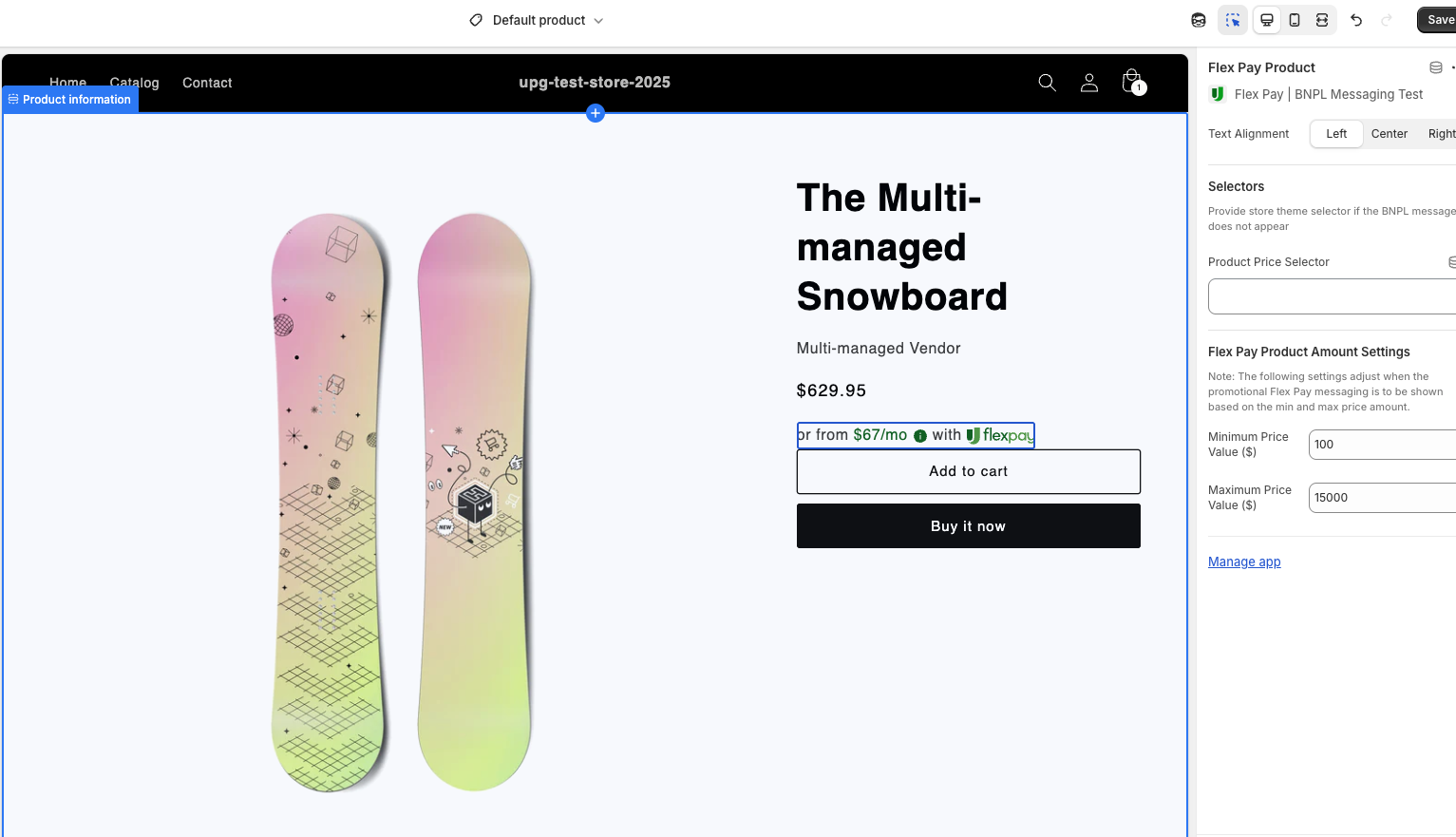
Once added, the Flex Pay ‘From Pricing’ Messaging should be displayed directly below the item price for all Product Pages
Please Note:
The ‘From Pricing’ messaging text align can be adjusted to Left, Center or Right
The default Minimum Price Value$ and Maximum Price Value$ displayed relate to the minimum/maximum amounts that Flex Pay can support for your orders
The Price Range for displaying ‘From Pricing’ Messaging can be adjusted if desired, and will be applied to all of your product pages
Hit SAVE on your Theme Editor in the top right corner to enable this across all of your product pages
Installing on Collection Pages
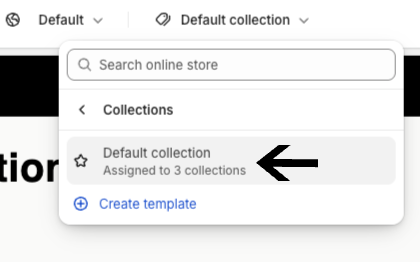
In your theme editor, navigate to the ‘Collections’ page
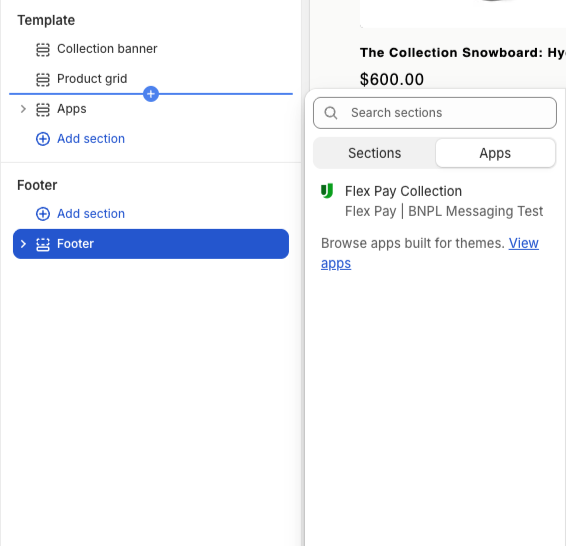
After landing on your Collections page, hover your mouse under ‘Product Grid’ on the left sidebar
When a plus sign appears, click ADD BLOCK
Select ‘APPS’ and then select ‘FLEX PAY COLLECTION’
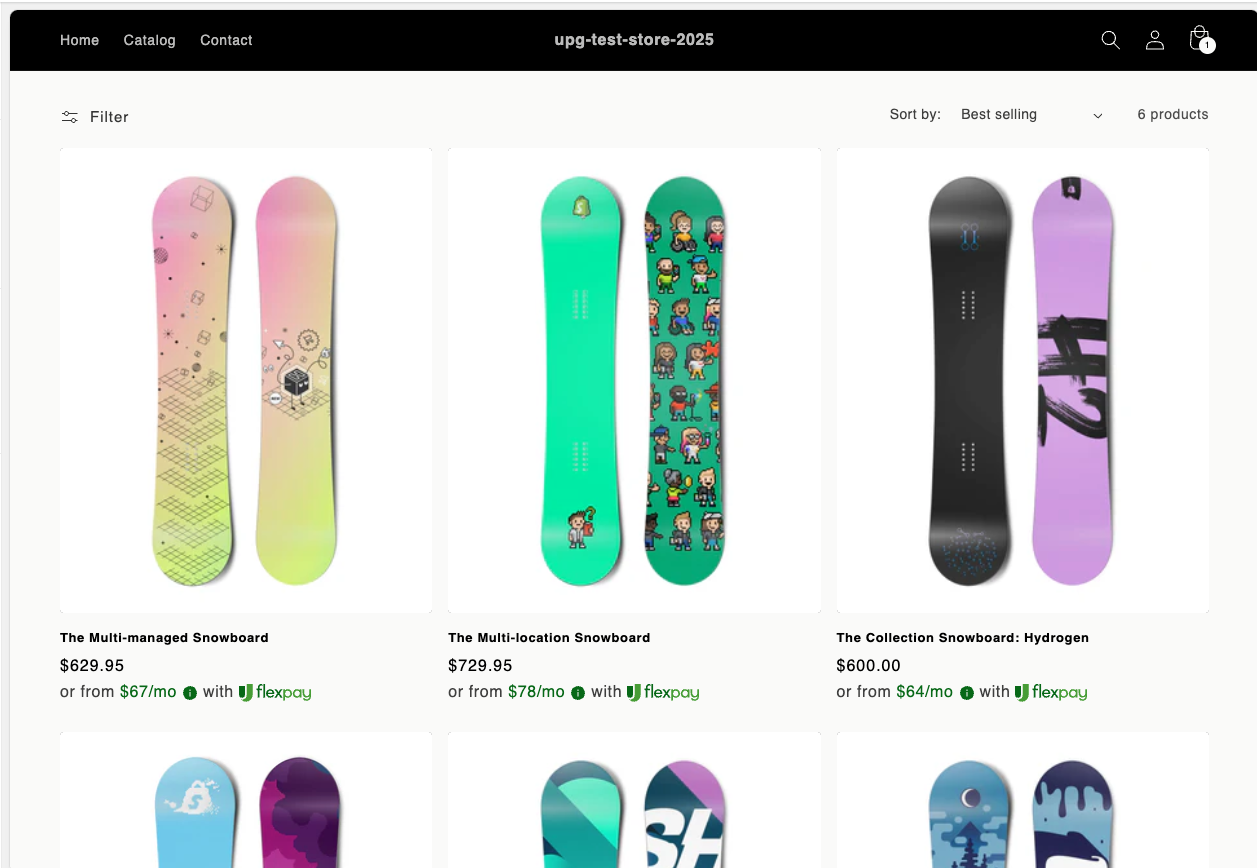
When added, the Flex Pay ‘From Pricing’ Messaging should be displayed directly below the item price for all products under the Collections view
Please Note:
The ‘From Pricing’ messaging text align can be adjusted to Left, Center or Right
The default Minimum Price Value$ and Maximum Price Value$ displayed relate to the minimum/maximum amounts that Flex Pay can support for your orders
The Price Range for displaying ‘From Pricing’ Messaging can be adjusted if desired, and will be applied to all of your pages
Hit SAVE on your Theme Editor in the top right corner to enable this across all of your collection pages
Installing on Cart Page
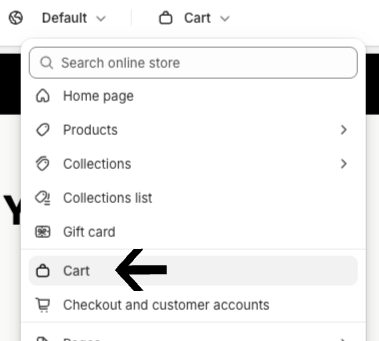
In your theme editor, navigate to the ‘Cart’ page
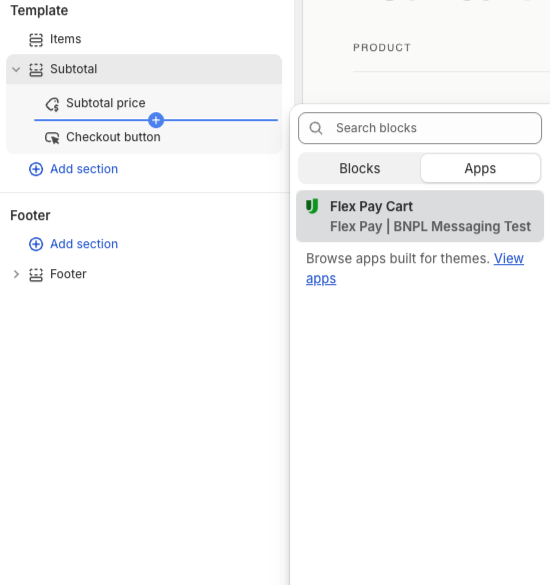
Navigate to ‘Subtotal’ on the left sidebar and expand the section
When a plus sign appears, click ADD BLOCK
Select ‘APPS’ and then select ‘FLEX PAY CART’
When added, the Flex Pay ‘From Pricing’ Messaging should be displayed directly below the Subtotal Price in the Cart View
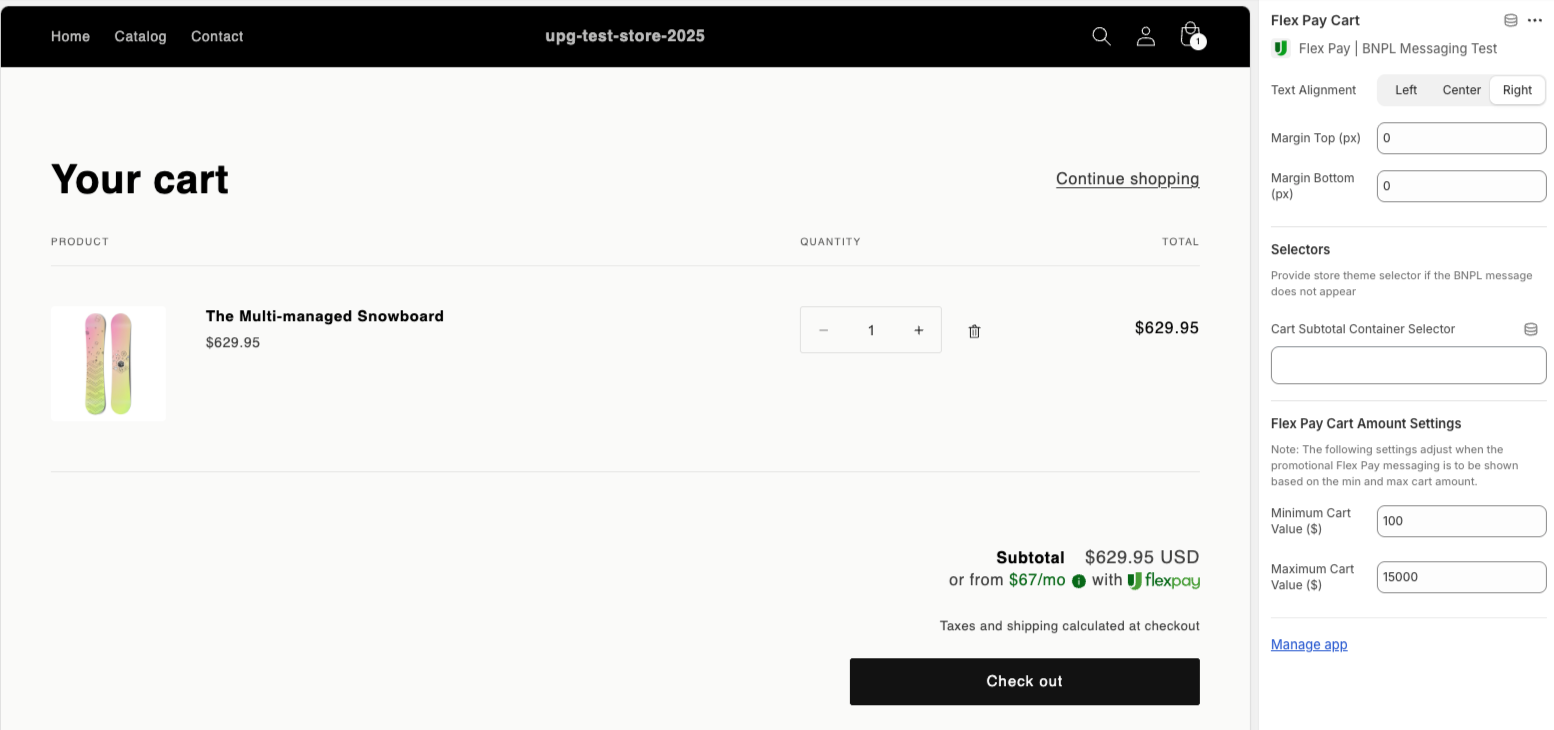
Please Note:
The ‘From Pricing’ Messaging text align can be adjusted to Left, Center or Right
The default Minimum Price Value$ and Maximum Price Value$ displayed relate to the minimum/maximum amounts that Flex Pay can support for your orders
The Price Range for displaying Promotional Messaging can be adjusted if desired, and will be applied to all of your pages
The Flex Pay ‘From Pricing’ Messaging is dynamic
If a user increases or decreases the quantity of a given item, the $x/mo messaging will update dynamically to reflect the updated total price
Hit SAVE on your Theme Editor in the top right corner to enable this on your Cart page
Promotional Campaign Messaging
If your store has an active Flex Pay Promotional Financing Campaign, the Flex Pay ‘From Pricing’ messaging will also display an additional promotional financing message underneath the ‘or from $x/mo’ placement.
No additional configuration is required to display the promotional financing messaging, as our app will dynamically display this copy line when a promotional campaign is active.
.png)